
Get DOITNOW AI Running
in 15 Minutes
From connecting your first data source to deploying the chat widget on your site — follow these interactive walkthroughs with real screenshots from the product.
The 4-Step Setup
No complex configuration required. Most teams go from signup to live widget in under 15 minutes.
Open Data Settings
Head to Data Settings in your DOITNOW AI dashboard. This is your central hub for configuring engines, sources, logo, widget, and embed.
Pick Your AI Engine
Choose DeepSeek (default), OpenAI, or Azure OpenAI. Use your own API keys for full control, or let us handle everything.
Connect & Collect Data
Add your Website URL, ServiceNow instance, or Xurrent connector. Hit Collect Data and we crawl, index, and prepare everything for AI search.
Customize & Deploy
Upload your logo, set your welcome message, choose your theme color, then copy the embed script and paste it into your site's HTML.
Follow Each Step with Screenshots
Every section below mirrors the actual DOITNOW AI dashboard. Click any item in the sidebar to jump directly to that topic.
Open Data Settings
The Data Settings page is your central configuration hub. From here you manage everything — AI engines, data sources, logo, widget styling, and the embed script — all in one clean panel.
Log into your DOITNOW AI dashboard
After signing up or logging in, look for the gear icon in the left sidebar and click Data Settings. This opens the configuration panel where all setup happens.
Review the 5 configuration sections
The panel is organized into: AI Engines, Data Source, Logo, Widget, and Embed widget. Each section expands when you click it, keeping the interface clean and focused.
Notice the live preview on the right
As you make changes to your logo, welcome message, or theme color, the widget preview on the right updates in real time. You can also see your public embed URLs and copy them with one click.
Everything saves automatically
There is no master Save button on this page. Each section has its own Save changes button where applicable. Most changes (like logo or color) take effect immediately.
Work top to bottom: set your AI engine first, then add data sources, then customize the widget. The preview only works once a data source is connected.
The preview URLs on the right (e.g. https://app.doitnow.sg/doitnow/...) are live and public. You can share them with teammates to test the widget before embedding.
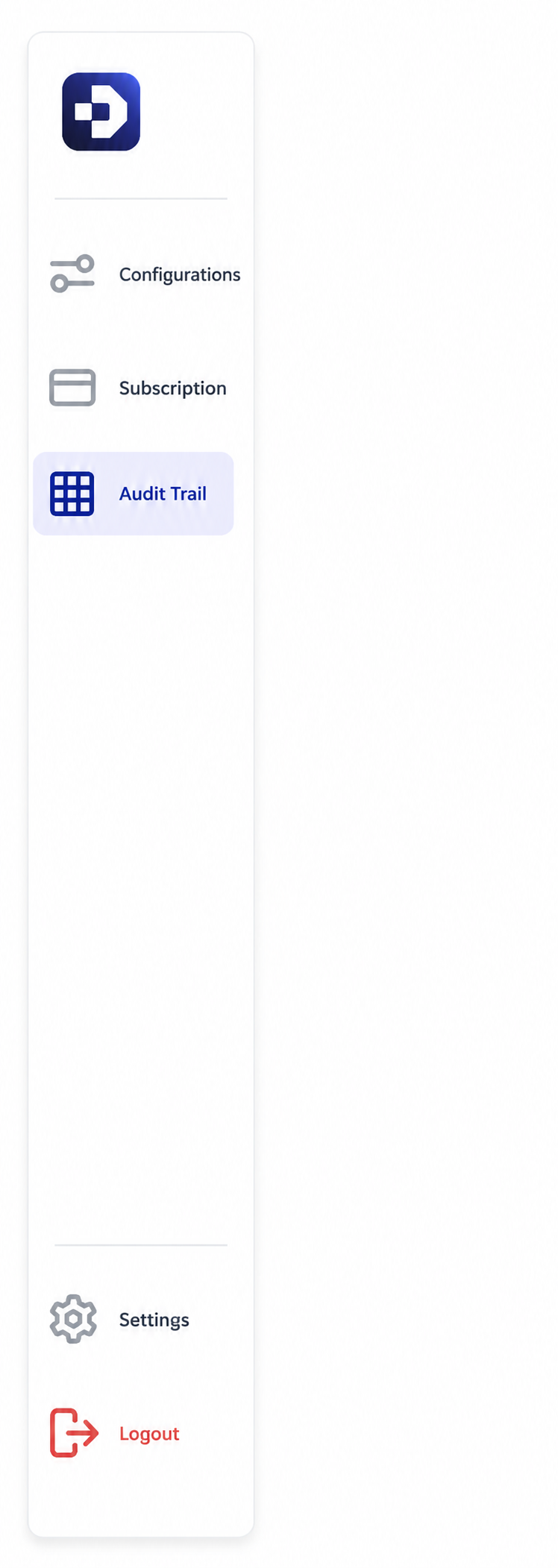
The sidebar menu — your navigation hub across all DOITNOW AI sections
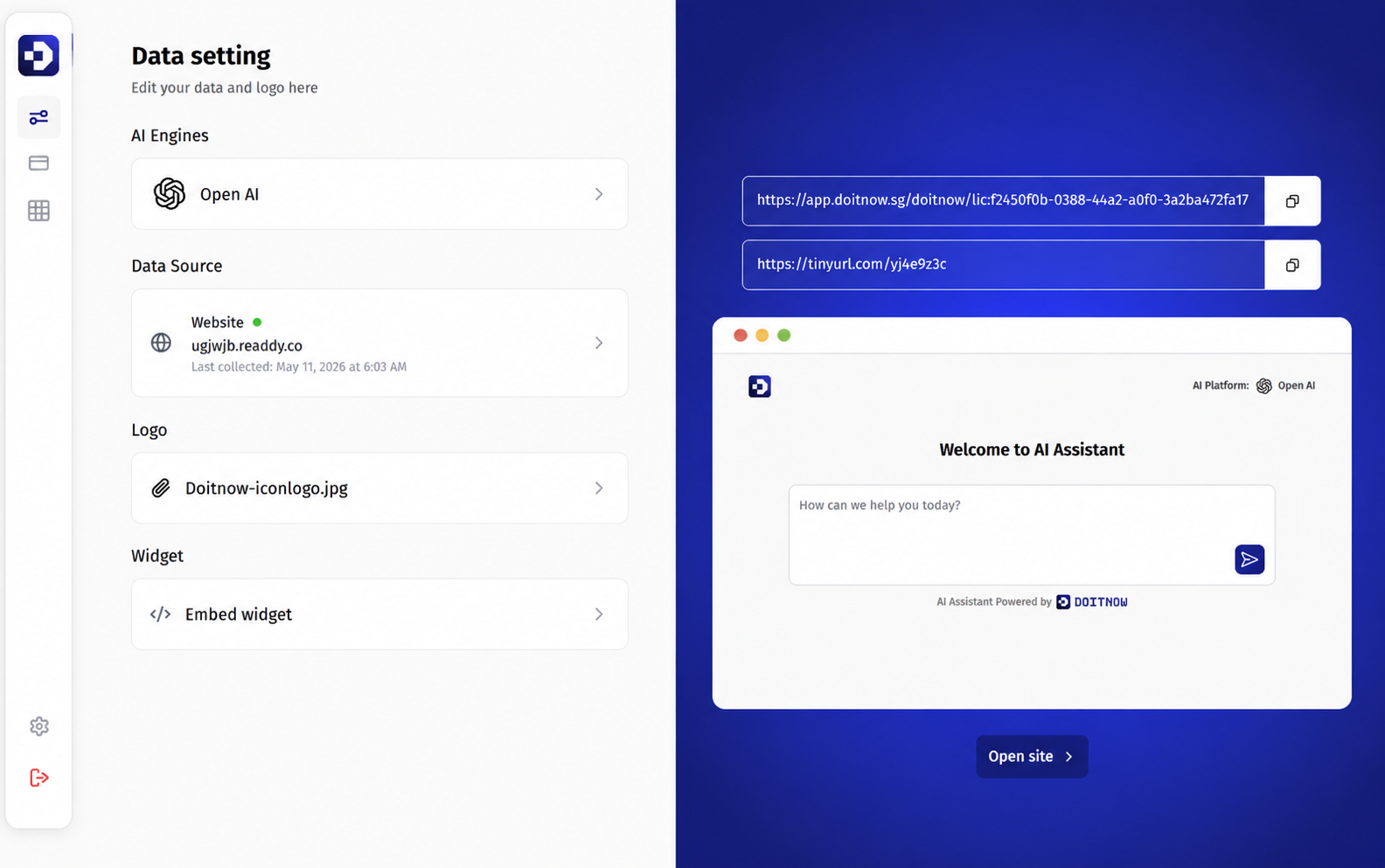
The Data Settings hub — one screen for all your configuration
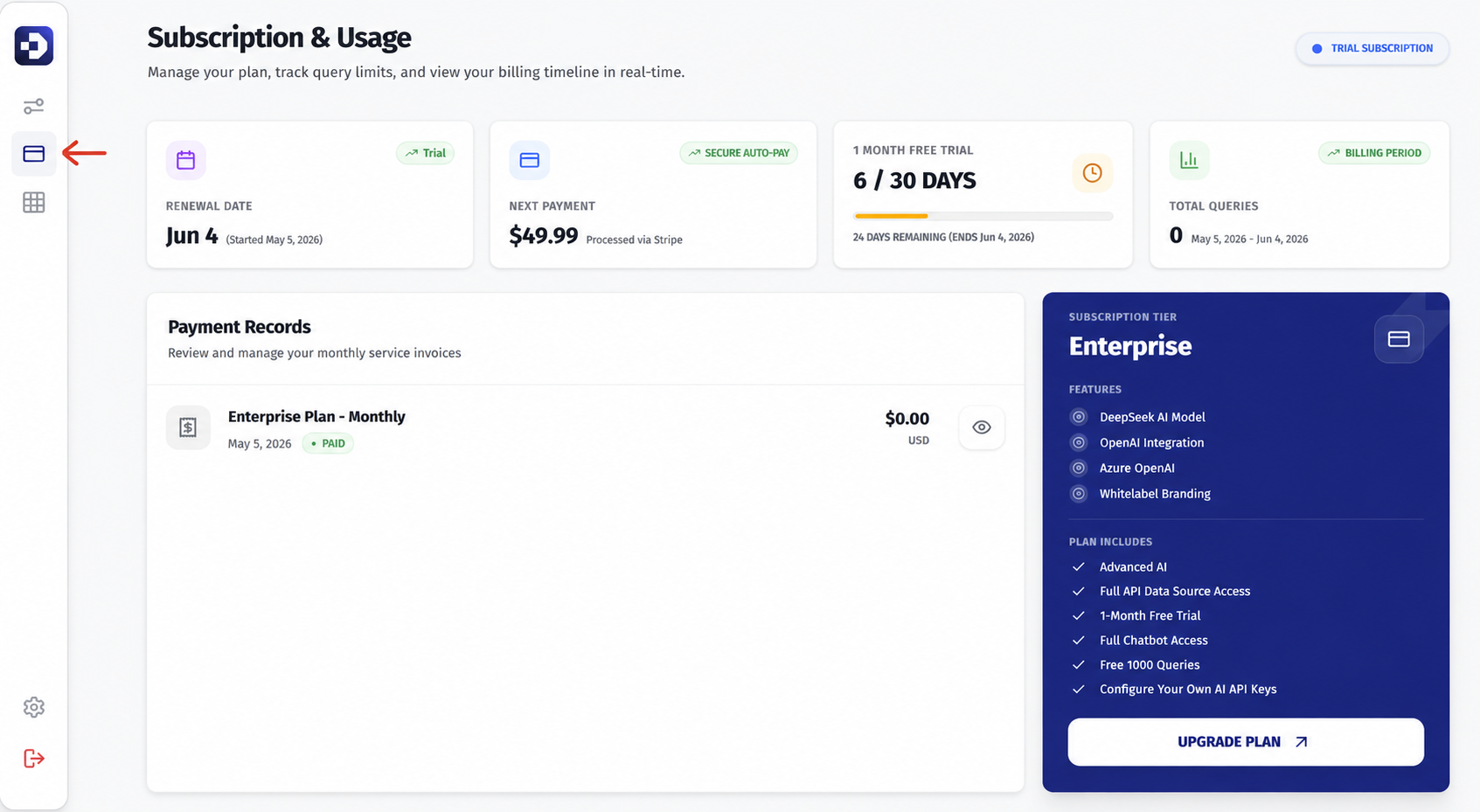
Subscription & Usage — view your plan, token consumption, and billing details
Select Your AI Engine
Pick which large language model powers your search and chatbot. DOITNOW AI supports DeepSeek (recommended, zero config), OpenAI, and Azure OpenAI with your own API keys.
Click AI Engines in Data Settings
In the left panel of Data Settings, click the AI Engines section to expand it. You will see the current engine and a Change button to switch or configure.
Pick from three engine options
DeepSeek AI is the default and recommended option — it requires no setup and just works. Open AI is fully supported if you already have an account. Azure OpenAI is the enterprise-grade option for organizations that need data to stay in their Azure tenant.
Use your own API keys (optional)
For Open AI and Azure OpenAI, click the Configure button next to each option. Enter your API key or Azure credentials. The key is encrypted and masked — only the last 4 digits show in the UI.
Save your selection
After choosing an engine and optionally adding credentials, click Save changes. A confirmation message appears. The AI engine switch is instant and does not require re-indexing your data.
For Azure OpenAI integrations, DOITNOW AI does not provide or manage the API credentials. You must configure your own Azure OpenAI deployment and enter the API details here.
DeepSeek AI is zero-config and handles token limits, rate throttling, and retries automatically. It is the best choice for teams that want AI search without managing API infrastructure.
If you bring your own OpenAI or Azure keys, you are responsible for token costs. Monitor usage in your provider dashboard to avoid unexpected bills on high-traffic sites.
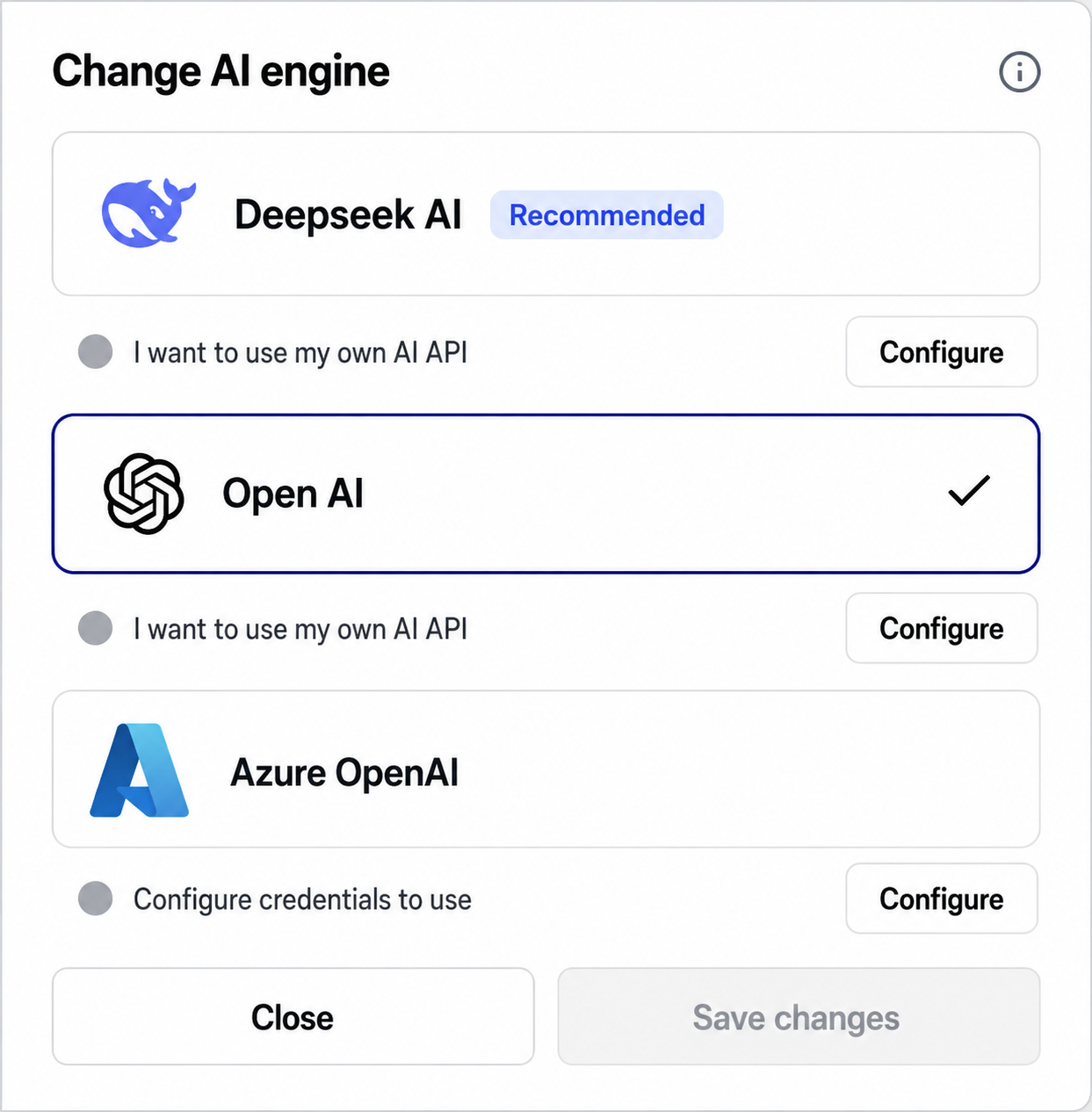
The AI Engine picker — choose your model and optionally bring your own keys
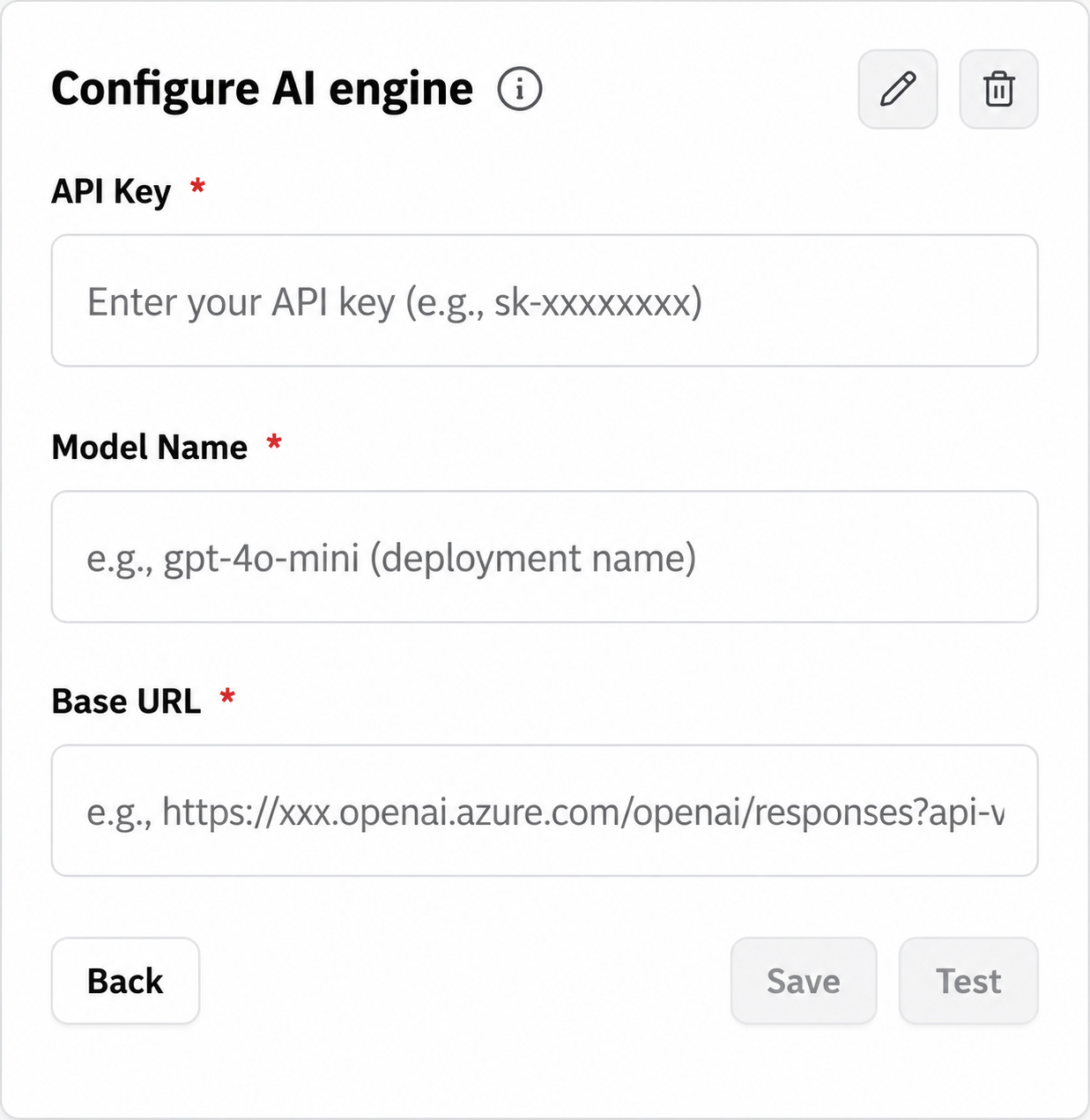
Bring your own API keys — DeepSeek requires no setup, OpenAI and Azure need credentials
Connect Your Data Sources
Tell DOITNOW AI where your content lives. We support Website crawling, ServiceNow integration, and Xurrent connectors. Once connected, hit Collect Data and we handle crawling, indexing, and vectorization.
Click Data Source in Data Settings
Expand the Data Source section. You will see three tabs: Website, ServiceNow, and Xurrent. The active tab has a blue border and a green status dot when connected.
Choose your source type
Website is the fastest way to start — just paste your domain. ServiceNow requires a read-only service account and your instance URL. Xurrent connects via API token. Pick the one that matches your setup.
Enter your connection details
For Website: type your full URL (e.g. https://yourcompany.com). The protocol dropdown defaults to https://. For ServiceNow: enter your instance URL, username, and password. For Xurrent: paste your API token.
Toggle collection on and hit Collect Data
A toggle switch next to each source controls whether the crawler is active. Turn it on, then click the Collect Data button. The Last collected timestamp updates in real time.
Wait for indexing to complete
The status dot turns green and shows the last collection time once indexing is done. Most websites finish in under 5 minutes. Large ServiceNow instances may take 10–30 minutes for the first crawl.
ServiceNow compatibility: The version tested and working was Zurich. Please contact us if you have issues running on earlier or later versions.
After pressing Collect Data, the process may take up to 5 minutes to complete. You may safely close the window, as data collection continues in the background. After the initial collection, data is automatically refreshed once per week every Sunday. If important changes are made before the next scheduled collection, simply log in and press Collect Data manually.
You can connect all three sources at once. The AI search engine will query across Website, ServiceNow, and Xurrent simultaneously to find the best answer for each user question.
You can configure your website as the only crawling source, or use ServiceNow and/or Xurrent integrations. At least one data source must be configured to use the platform.
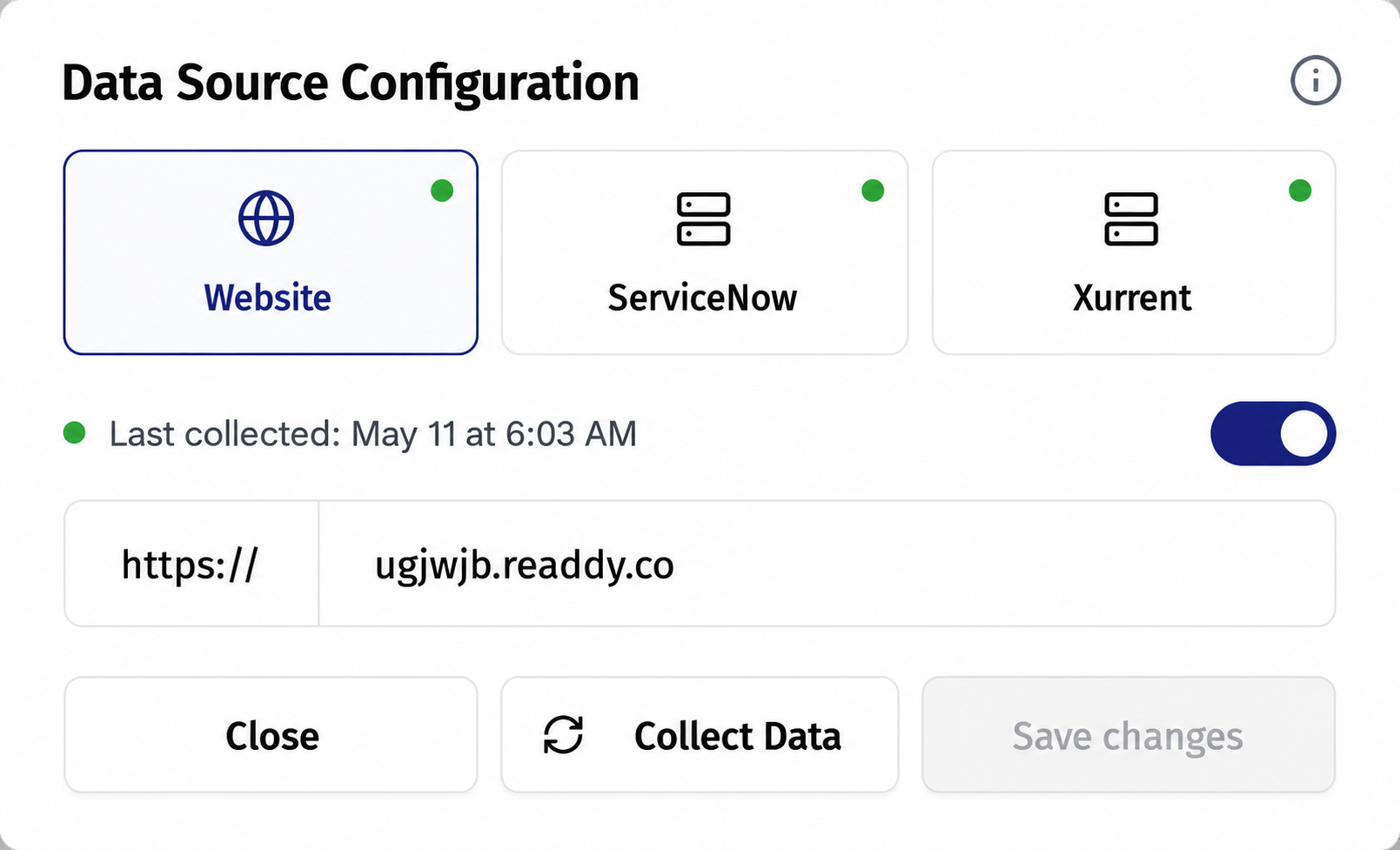
Data Source configuration — pick Website, ServiceNow, or Xurrent, then hit Collect Data
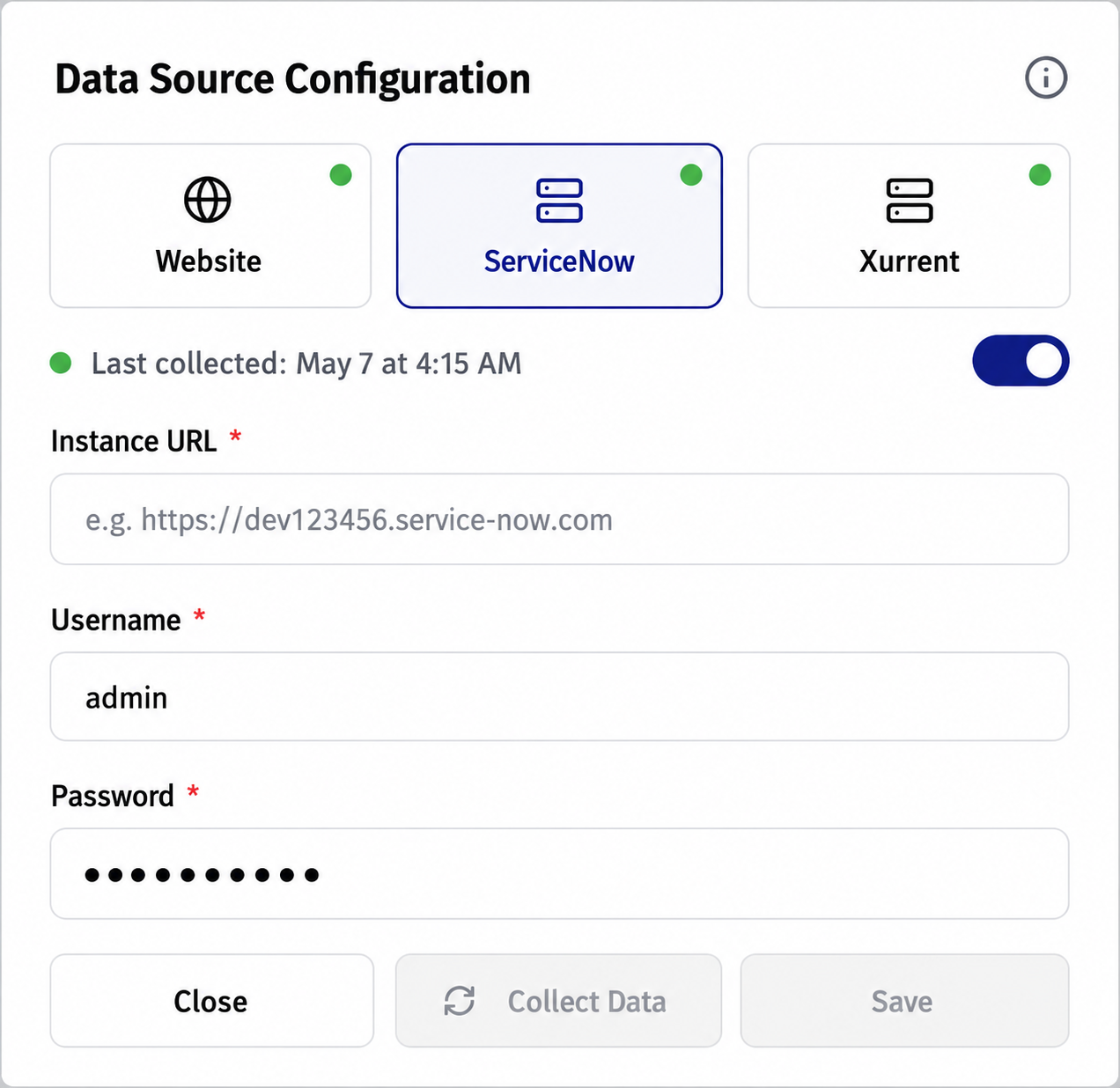
ServiceNow connector — enter your instance credentials and toggle collection on
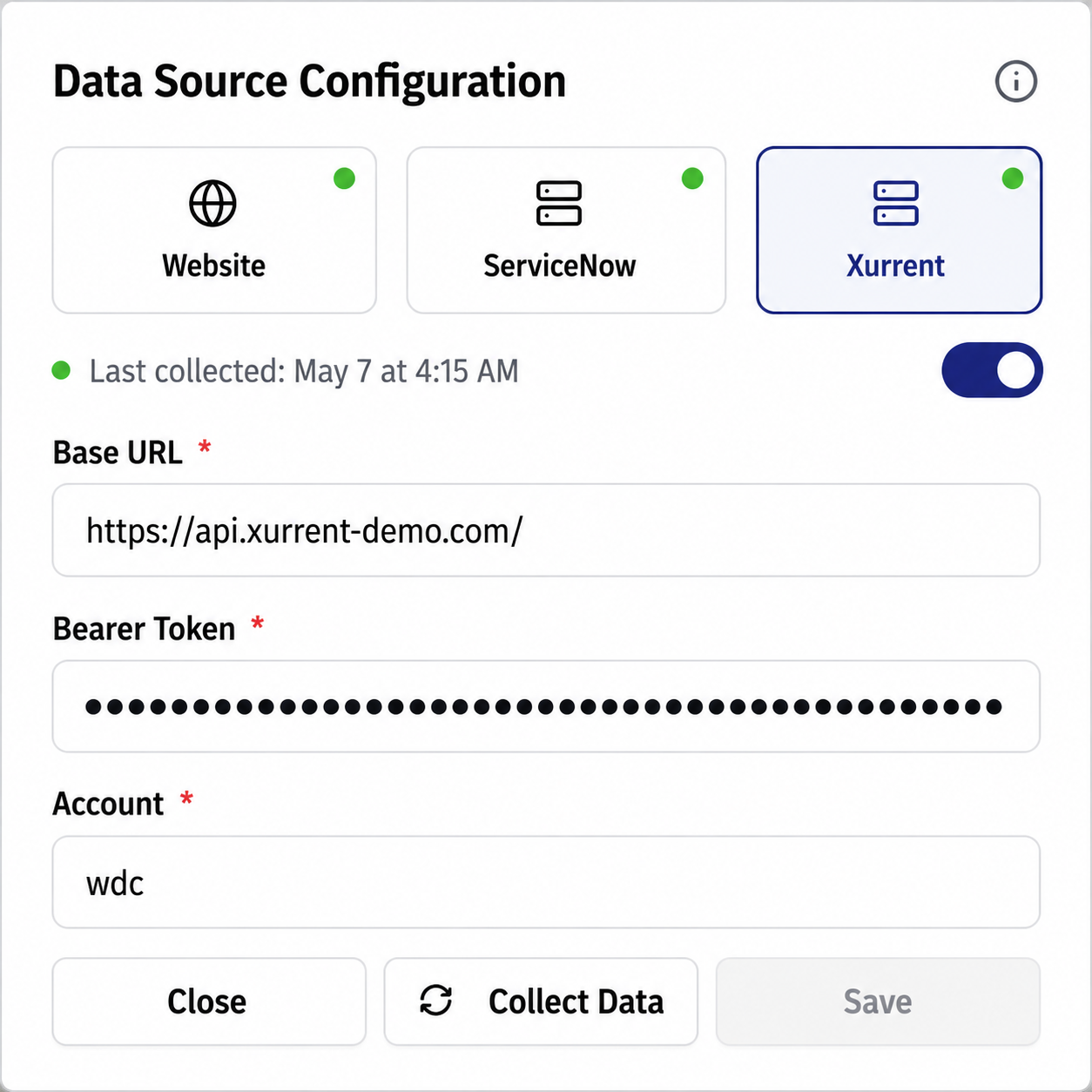
Xurrent connector — paste your API token and enable collection
Customize the Widget
Brand the chat widget to match your site. Upload your logo, set a welcome message, pick your theme color, and see a live preview update instantly on the right.
Expand the Logo section
Click the Logo row in Data Settings. You will see a file upload area that accepts JPG or PNG. Your logo appears in the widget header and in the powered-by footer.
Open the Widget section
Click Widget to expand the script options. This includes embed code with 2 options, 1 with standard suggested AI questions and the 2nd with additional up to 3 questions.
Add Initial Questions to Ask
You can configure up to 3 custom questions, which can appear either before or after the AI-generated suggested questions. Use data-position="before" to show them first, or data-position="after" to place them below AI suggestions.
Watch the live preview update
Once you add the widget to your website, every change you make appears in the chatbot in seconds.
Embed widget & go Live
The final step — grab your embed script from the Embed widget section and paste it into your website. One script tag, no dependencies, no build steps. Your AI search is live.
A 200×50 pixel PNG works best for the logo. The widget auto-crops and centers it, so a transparent background looks cleanest on both light and dark themes.
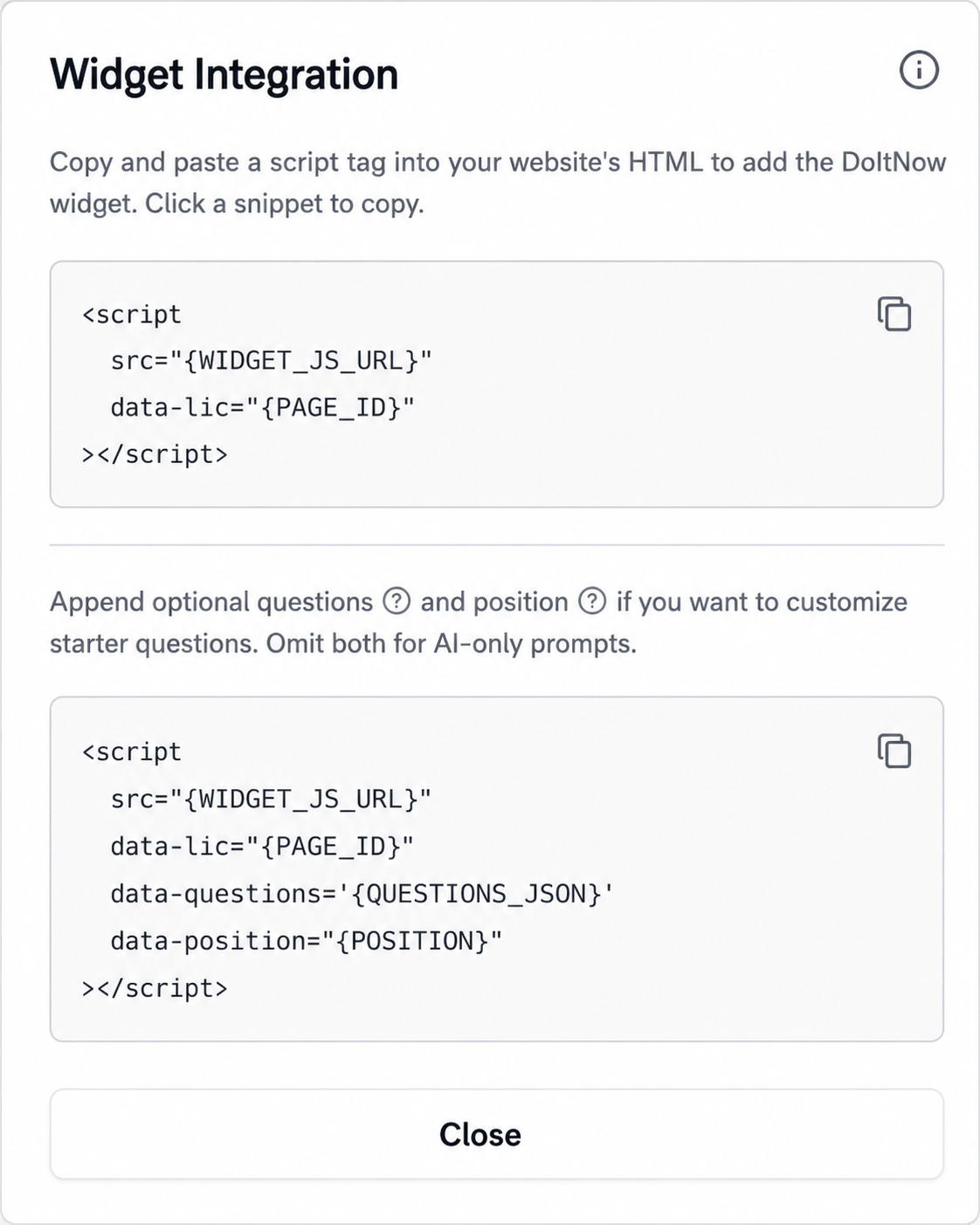
For security reasons, the full script and license key are not displayed above. Simply click the snippet you want to use and it will automatically copy to your clipboard.
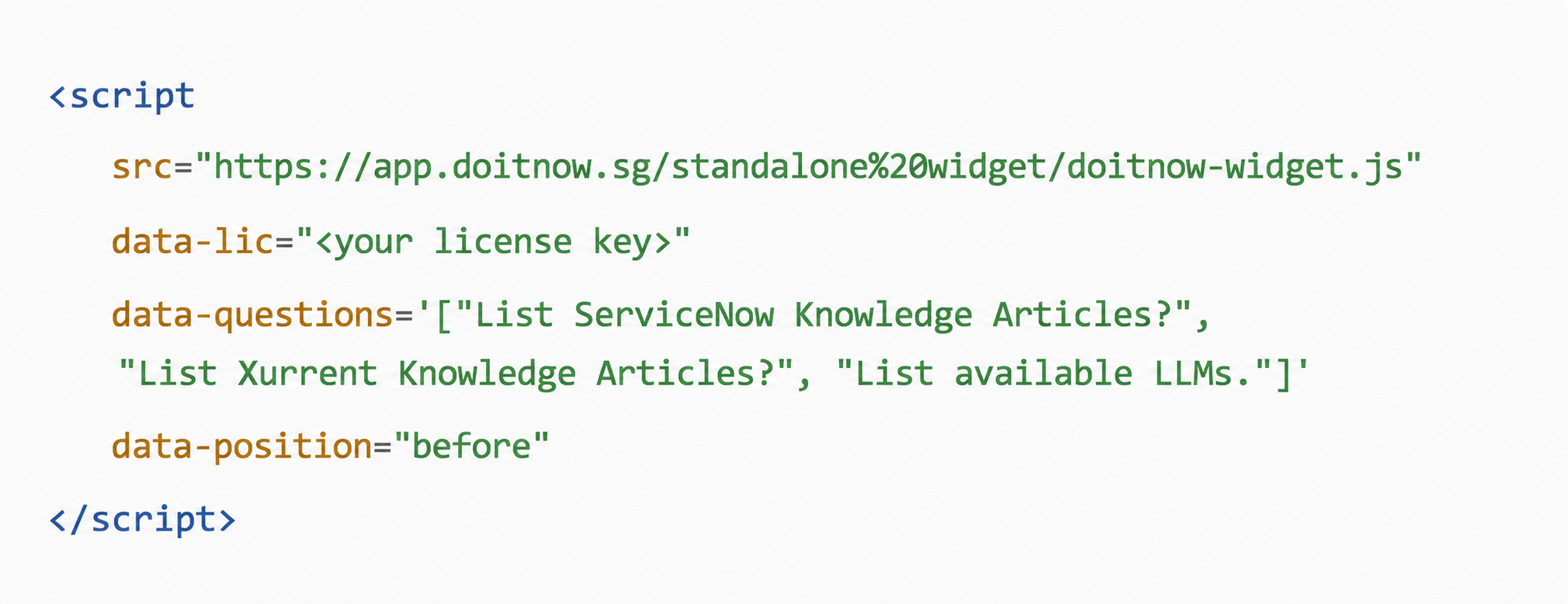
Click any snippet to copy it instantly — no need to manually select text
Test the AI Search Form
Before embedding the widget on your live site, preview and validate the AI Search form in isolation. Use the Menu link to open a standalone form that runs on your configured LLM and connected data sources.
Open the AI Search form from the Menu
In the left sidebar, click the AI Search menu item. This opens a clean, standalone search page that mirrors the embedded widget experience but without the chat bubble.
Ask a test question
Type a real question your customers might ask — e.g. "How do I reset my ServiceNow password?" The AI will use your configured LLM and query across all connected data sources to return a contextual answer.
Review the answer and sources
Each response includes a source badge showing which data source it came from — Website, ServiceNow, or Xurrent. Click the source badge to verify the AI is pulling from the right content.
Copy the shareable link
At the top of the test form you will find a normal URL and a tiny URL. Copy either one — both link directly to your live AI Search form with your current configuration. You can paste the tiny URL into Slack, emails, or documentation.
Click Open Site to validate live behavior
Press the Open Site button to see your AI Search form running in a new tab exactly as visitors will experience it. This confirms your LLM, data sources, and widget settings are all working before you commit to embedding.
Add ?admin=true to the end of the URL to enable Admin Mode. This will display the DOITNOW logo, LLM selection dropdown, and Settings icon in the top menu. Admin Mode allows you to test responses using different LLMs, as results may vary depending on your data and content structure. This feature allows you to compare and determine the best AI engine for your environment.
Use the AI Search form as a staging environment. Test edge-case questions, verify answer quality, and iterate on your data sources before deploying the widget to production.
If the AI Search form returns no results, check that your data sources are connected and Collect Data has completed. The form will not return meaningful answers until at least one source has been indexed.
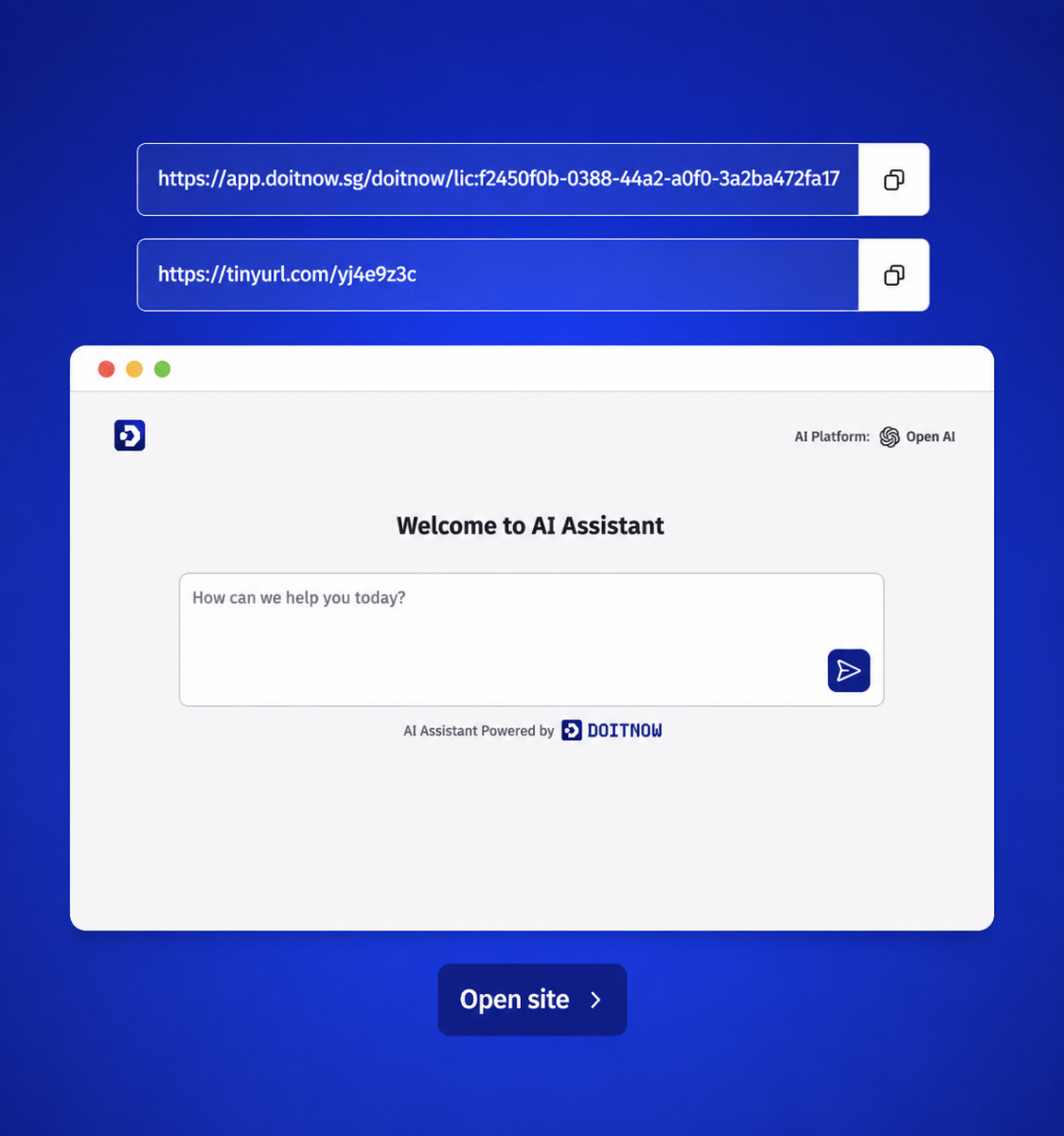
The AI Search form — test your configuration in isolation before embedding

Admin Mode — add ?admin=true to your URL to unlock LLM testing and settings. Changes made here are for testing purposes only and are not permanently saved.
Ready to Launch Your AI Search?
Start your 30-day free trial today. No credit card required, full feature access, and you can deploy the widget in under 15 minutes.
